By The PDFBell Team
Client-Side vs Server-Side PDF Tools: What Actually Happens to Your File
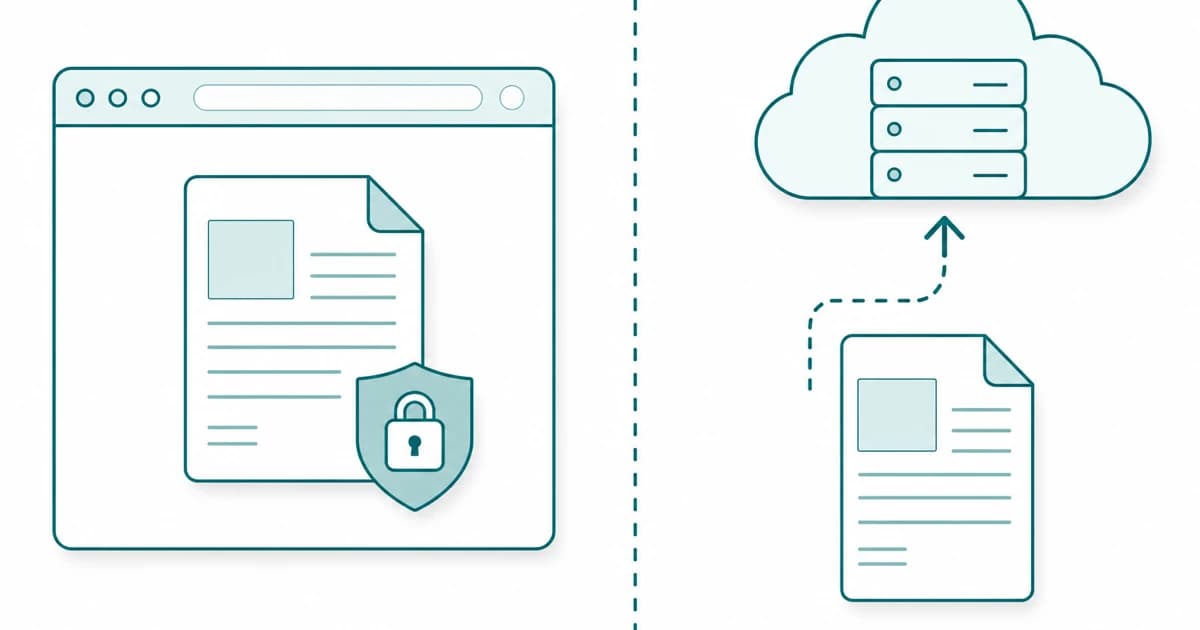

Almost every “online PDF tool” you can find falls into one of two camps, and the difference decides what happens to your document the moment you drop it in. In one design your file is sent across the internet to a company’s server, processed there, and sent back. In the other, the work happens on the computer or phone already in front of you, and the file never travels anywhere.
That distinction is easy to miss because both kinds show you the same thing: a box that says “drop your file here.” This guide explains what each architecture actually does with your document, what the trade-offs are, and — most usefully — how to check for yourself which one a given tool is using before you hand over something private.
What “uploading” actually means
When a tool is server-side, clicking “upload” does exactly what the word says: your file is copied off your device and transmitted over the network to a machine the operator controls. That server opens the file, performs the merge or conversion or compression, and streams a result back to your browser.
The processing itself is usually fine. The part worth thinking about is everything around it. Once a copy of your document is on someone else’s hardware, its lifetime is governed by that operator’s policies, not yours: how long the file sits on disk before deletion, whether it is written to backups or logs, whether a third-party cloud provider or subprocessor also touches it, and who on their side could read it. None of that is visible from the upload box. For a holiday photo it rarely matters. For a signed contract, a medical form, a bank statement, or anything with names and addresses in it, it is the whole question.
How in-browser (client-side) tools work
A client-side tool flips the model around. Instead of shipping your file to code running on a server, it ships the code to the file. When you choose a document, the browser reads it locally using the standard File API — the same File and ArrayBuffer machinery a photo editor or a game uses — and hands the raw bytes to JavaScript and WebAssembly running inside your own tab.
The important consequence is that there is no upload step for your document at all. The only thing that crosses the network is the tool’s own program: a few hundred kilobytes of code, and sometimes a small processing engine such as a PDF library or an image decoder, downloaded from the site to your browser once. After that, merging, splitting, signing, or converting all happen in memory on your machine. The output is generated locally and offered to you as a normal download that was never anywhere else.
This is not a marketing abstraction — it is observable. Because the file stays in the page, a well-built client-side tool keeps working even if you cut your internet connection after the page has loaded, and a network monitor shows your document bytes never leaving.
The privacy and speed trade-offs
Client-side processing has two clear wins. The first is privacy: a file that is never transmitted cannot be retained, logged, or exposed by a server, because there is no server copy to begin with. The second is latency for small jobs — there is no round trip, so a quick merge of a couple of files often finishes faster than the time it would take to upload them.
It is not free of limits, though. Everything runs inside the browser tab, so very large files or huge batches are bounded by your device’s memory rather than by a data-center’s. And some genuinely heavy transformations — the kind that need large native engines or server-grade compute — are simply easier to do on a server. Server-side tools trade privacy for that raw capability. Neither model is universally “better”; they answer different questions. The honest rule of thumb: if a document is sensitive, prefer a tool that never uploads it.
How to tell which kind you are using
You do not have to take any site’s word for it. The most direct check is your browser’s developer tools: open the Network panel, which logs the network activity of the page, then run the tool on a file. On a server-side tool you will see a large outbound request — typically a POST carrying your file’s bytes — right when processing starts. On a client-side tool you will see the page and its engine load, and then nothing outbound while the work happens, because the bytes never leave the tab.
A quicker, rougher test is the offline one: load the page, disconnect from the internet, and try the tool. If it still completes the job, the processing was local. It also pays to read the site’s privacy policy for words like “uploaded,” “stored,” or “deleted after,” which only make sense when files are actually sent somewhere — a genuinely client-side tool has nothing to store or delete.
Where PDFBell fits
PDFBell is built entirely on the client-side model, and deliberately so — it is the reason the site exists. Every tool here, from merging and signing to format conversion and clearing metadata, runs in your browser using open-source libraries such as pdf-lib and pdf.js; your document is read locally and never uploaded to a PDFBell server. The only network activity while you work is your browser downloading the tool’s own code and, for a few formats, a small decoding engine or OCR model, all served from this site. Your file is not part of that traffic, and the site loads no analytics scripts.
If you want to see it for yourself, the checks above work here too: run any tool with the Network tab open, or disconnect after the page loads. The How we verify page walks through those checks step by step. And because nothing is transmitted, there are no accounts and nothing for us to retain (a few tools do have per-run limits, such as 20 files for merge, and PDFBell refuses password-protected or permissions-restricted PDFs that its in-browser engine cannot safely rewrite, rather than returning a blank file). You can start with something ordinary and low-stakes — combine a few pages with the merge tool, strip identifying metadata from a file before sharing it, or add a signature — and watch the file stay put.
Frequently asked questions
If my file never uploads, how does the tool process it?
Your browser itself does the work. Modern browsers can read a file you select entirely in local memory and run programs — written in JavaScript and WebAssembly — on those bytes without sending them anywhere. A client-side PDF tool downloads that program to your device once, then uses it to transform the file locally and hand you the result as a download.
Does “no upload” mean the tool works offline?
After the initial load, largely yes. The page and its processing engine need the network to download the first time you open the tool. Once they are loaded, most operations run without any further connection, which is why disconnecting and re-running a tool is a good way to confirm the processing is local. Some tools fetch an extra decoder for specific formats, so a fresh format may need one more download before it can run offline.
Is client-side processing less secure than a server?
It is a different threat model rather than a weaker one. Keeping the file on your device removes the entire category of risk that comes with transmitting and storing it on someone else’s server — retention, logging, breaches, and subprocessor access. The standard security of your own browser and operating system still applies, as it does for anything you open locally.
How can I verify a specific tool is not uploading my file?
Open your browser’s developer tools, switch to the Network tab, and run the tool on a document. A server-side tool shows a large outbound upload request as processing begins; a client-side tool shows no outbound file transfer at all. As a simpler check, load the page, disconnect from the internet, and see whether the tool still completes the task.
Are there PDF tasks that genuinely need a server?
Some do. Extremely large files or big batches can exceed what a single browser tab has memory for, and a handful of heavy transformations are far easier with large native engines that only run comfortably on a server. For those, a server-side tool is a reasonable trade — just make the choice knowingly, and avoid it for documents you would not want copied off your device.
Sources
- MDN: Using files from web applications — Browsers let web content read the contents of files you select, locally, through the File API.
- Chrome DevTools: Inspect network activity — The Network panel logs all network activity and lets you inspect each request.
- MDN: WebAssembly — WebAssembly runs alongside JavaScript in the browser at near-native performance.