Convert SVG to PDF Online
Turn SVG icons, logos and diagrams into one PDF as raster pages at each file's own size. Free, and run on your own device.
Drop SVG files to convert
SVG files only, up to 40 per PDF. Drag rows to reorder.
Does an SVG stay a vector inside the PDF?
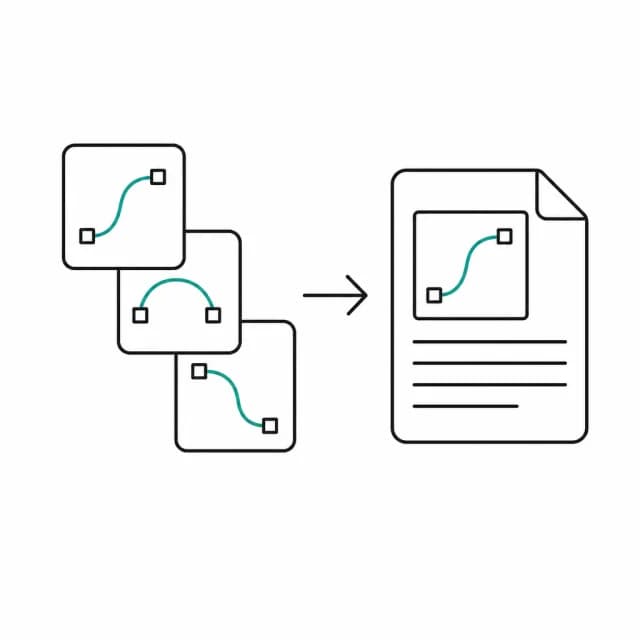
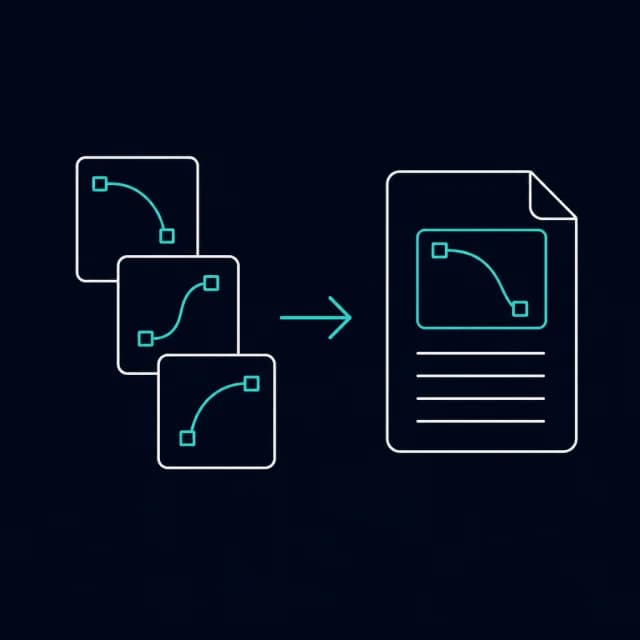
No. Each SVG is loaded as an image by your browser, drawn onto a canvas, and saved as a PNG that goes onto its own PDF page. The page you get is a picture of the vector artwork, so text in it cannot be selected and it will not scale cleanly the way the SVG does. Keep the original SVG as your master copy for print work.
The canvas is exactly as large as the browser reports for the file, with no scale factor applied. An icon that declares a 24 by 24 size becomes a 24 pixel image, and in 'Original size' mode a 24 point page. If a file has a viewBox but no width and height, the size comes from the browser's own rules, and a size of zero stops the run with a 'no visible content' error. Adding width and height to the SVG before converting is the reliable way to control the result.
It suits handing a set of exported marks to someone who has no vector editor, and the rasterizing happens right here in the tab.
How to convert SVG to PDF
- Step 1
Add the SVG files
Drop .svg files onto the upload area or pick them with Browse files. Each shows as a small thumbnail so you can confirm it loaded.
- Step 2
Order the artwork
Drag rows, or use the arrow buttons, until the queue lists the files in the page order you want.
- Step 3
Pick the page and background
Choose Original size, A4 or Letter with a margin. SVG icons usually have no background, so decide whether to switch on the white fill.
- Step 4
Rasterize and download
Press Convert to PDF. When the ding plays, download images.pdf.
What is rasterizing an SVG into a PDF actually useful for?
A logo package for a client
Send several exported logo variants as one file the client can open anywhere to approve.
An icon set for review
Turn a folder of SVG icons into one scrollable document that teammates can comment on.
A diagram for an archive
Keep a flat, always-opens copy of a vector diagram next to the editable SVG.
A proof for a print vendor
Attach a visual proof of the artwork while keeping the original SVG as the actual print source.
SVG to PDF limits and edge cases
- The output is raster, not vector. Text in the SVG cannot be selected afterwards and the artwork will not stay sharp if you zoom far in.
- There is no upscaling. The image is drawn at the size the browser reports for the SVG, so a small icon produces a small bitmap; give the SVG larger width and height values first if you need more pixels.
- An SVG with a viewBox but no width or height gets its size from the browser's default sizing rules. If that comes out as zero, the run stops with a 'no visible content' error.
- Only .svg files are accepted, not compressed .svgz. Up to 40 files go into one PDF; extra files are dropped with a notice.
- Transparent areas stay transparent unless the white fill is switched on. Most icon SVGs have no background rectangle, so this matters for them.
Frequently asked questions
Is the SVG embedded as a vector in the PDF?
No. The SVG is rasterized to a PNG first, so the page is a picture of it. Keep the SVG for anything that must stay scalable.
Why is my icon tiny or blurry in the PDF?
The tool draws the SVG at the size the browser reports for it and never scales it up. A 24 by 24 icon is a 24 pixel bitmap. Increase the width and height attributes in the SVG, then convert again.
My SVG has no width or height. What size will it get?
The browser decides, based on its rules for SVGs that only have a viewBox. The tool applies no size of its own, and it stops with an error if the result is zero. Setting width and height in the file gives predictable output.
Will the text in my SVG be selectable in the PDF?
No. The text is part of the rasterized image, so it cannot be selected, searched or copied.
Does it keep the transparent background of an icon?
By default yes. Use the white fill if the icon should sit on a white page instead.