Merge & Combine PDF Files Online
Combine multiple PDFs into one document in seconds — free and your files never leave this browser.
Drop PDFs to merge
PDF files only. Add up to 20 files, then drag to reorder.
How does merging PDFs work here?
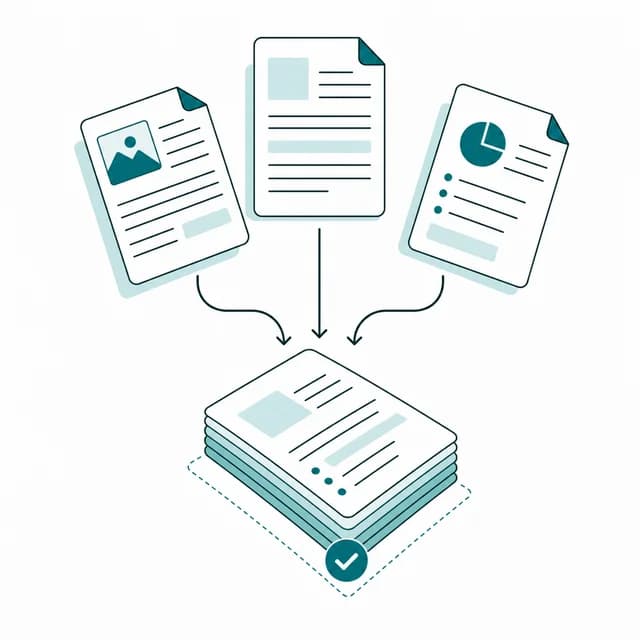
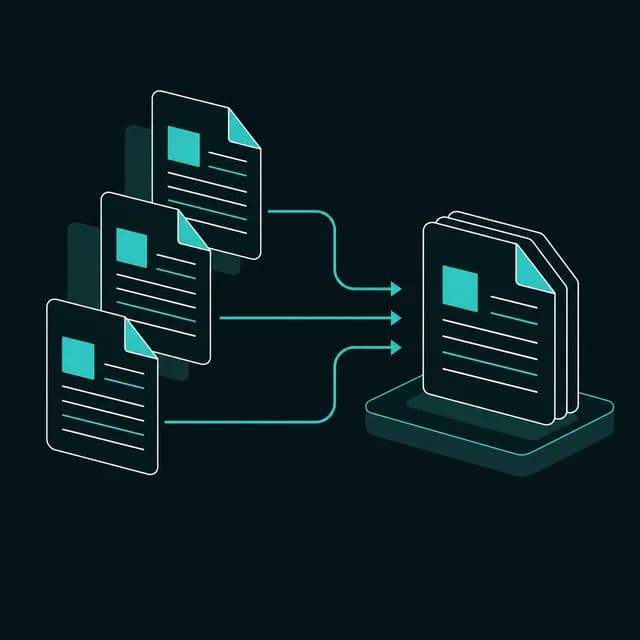
PDFBell's PDF merge tool lets you combine two or more PDF files into a single, correctly ordered document in seconds. Whether you need to merge PDF files for a client proposal, combine PDF files free of charge for a school project, or simply want a fast way to combine PDF free of any sign-up wall, this tool does exactly one thing well: it takes the PDFs you drop in and hands back one clean file, in the order you choose.
The merge runs in this browser tab. Each file is read from your device's memory, its pages are copied into a new document with pdf-lib, and the result is offered as a download, so none of your files is sent to a server.
There is no email gate and no watermark. You can queue up to 20 files at a time: add them one at a time or all at once, drag the thumbnails into the order you want, and remove anything you added by mistake before you commit. When the combined size is over 10 MB the merge moves to a background worker so the tab stays responsive, and a progress indicator shows how far along it is.
People reach for a merge PDF tool for a lot of reasons: stitching together scanned pages into one file, combining separate chapters of a report, assembling a set of signed forms before sending them back, or building a single portfolio PDF out of individual work samples. Because reordering happens before you download, you don't need a separate tool to fix the page order afterward — get it right once, merge, and download a single PDF that's ready to send.
How to merge PDF files
- Step 1
Add your PDF files
Drag and drop two or more PDFs onto the upload area, or click Browse files to pick them from your device.
- Step 2
Put them in order
Drag a file's thumbnail up or down, or use the move-up and move-down buttons, until the files are in the order you want in the final document.
- Step 3
Merge into one PDF
Click Merge PDFs. Processing starts straight away and a progress bar shows how far along it is.
- Step 4
Download your file
Once the ding! plays, download the combined PDF. Click Start over to merge another set of files.
What do people merge PDFs for?
Combine scanned pages
Merge single-page scans from a scanner or phone app into one multi-page PDF for filing or sharing.
Assemble reports and proposals
Combine a cover page, body, and appendix, each exported separately, into one polished document.
Merge signed contracts
Bring together several signed pages or exhibits into a single PDF before sending it back to a client or counterparty.
Build a portfolio or packet
Combine PDF files free from multiple projects into a single work sample or application packet.
Merge PDF limits and edge cases
- Up to 20 files per merge. If you add more, only the first 20 are kept and a notice says so. Merge in two rounds if you have more than that.
- Password-protected PDFs can't be merged: a file that needs a password to open is rejected with an error, and its thumbnail shows "No preview". A PDF that opens without a password but carries editing restrictions (such as "no printing") is also refused with a clear message, because PDFBell cannot decrypt files and the merged result would have blank pages. Remove the restriction in the app that created it, then try again.
- Bookmarks (outlines) and fillable-form definitions are not carried into the merged file. Pages and their visible content are copied, but the document-level outline and form data of each source are left behind, so form fields may no longer be fillable.
- The merged file starts with fresh document properties. Title, author and other metadata from the source files are not copied; use PDF Metadata Editor afterwards if you need them.
- All queued files are held in your browser's memory at once, so a very large set can fail on a phone or a low-memory computer. Merge in smaller batches if that happens.
Frequently asked questions
How many PDFs can I merge at once?
Up to 20 files per merge. If you add more, the first 20 are kept and a notice tells you so; merge the result with the remaining files in a second pass. Batches over 10 MB in total are processed in a background worker so the page stays responsive.
Can I change the order of the pages before merging?
Yes. Drag each file's thumbnail into the order you want, or use the move-up and move-down buttons, before you click Merge PDFs. The files are combined top to bottom, and every file keeps its own page order.
Will bookmarks and form fields survive a merge?
No. The pages and their visible content are copied, but each source file's bookmarks and its document-level form definition are not, so bookmarks disappear and fillable fields may stop being fillable. Recreate them after merging if you need them.
What happens if one of my PDFs is password protected?
A PDF that needs a password to open is rejected, so remove the password in the app that created it first. A PDF that opens without a password but only has editing restrictions (a permissions password) is also refused with a clear message, because PDFBell cannot decrypt files and the merged pages would be blank. Save an unrestricted copy in the app that created it, then merge that.
Does merging reduce the quality of my pages?
No. Pages are copied as they are rather than redrawn, so text stays selectable and images are not recompressed.