Split PDF Online
Break one PDF into several — by page ranges or a fixed number of pages per file — free and completely private.
Drop a PDF to split
One PDF at a time. Choose page ranges or a fixed page count per output file.
How do you split a PDF into several files?
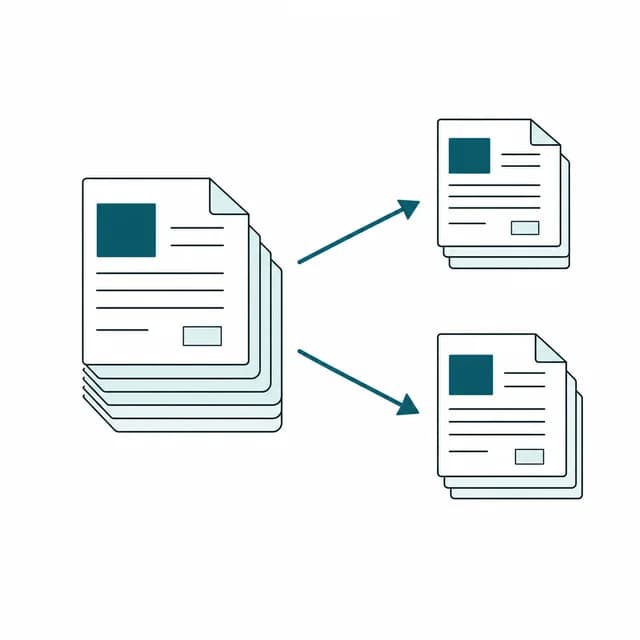
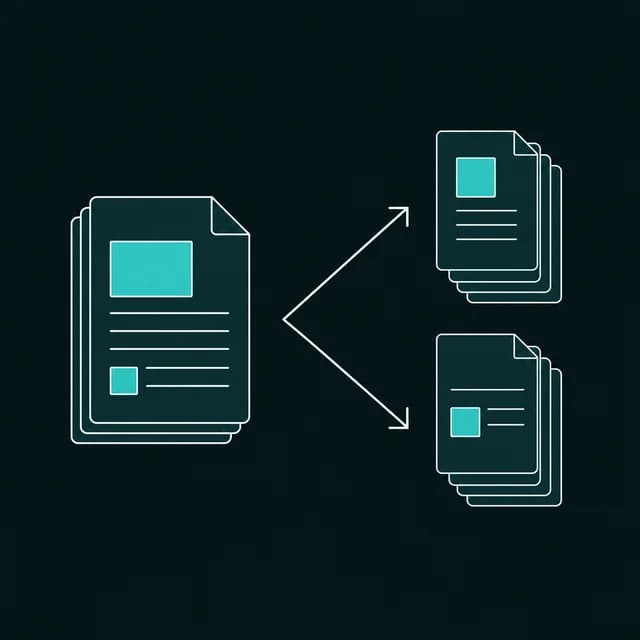
PDFBell's split PDF tool breaks one document into several smaller files, either by typing the exact page groups you want ("1-3; 4-6; 7-10") or by telling it to cut the file into fixed-size chunks every few pages. The first mode is built for pulling apart a document along meaningful boundaries — a chapter here, an appendix there — while the second is built for evenly sized batches, like turning a 40-page scan into ten 4-page files.
Splitting happens in this browser tab: every output file is assembled locally with pdf-lib and handed back as a single PDF or, when a split produces more than one file, as one ZIP archive you can unpack anywhere. Nothing is sent to a server.
A common reason to split a PDF is an email attachment size limit: a single combined report might be too large to send as one file, but the same content broken into a handful of smaller PDFs clears the limit easily. Another is separating a scanned bundle back into its original documents — a batch scan of several invoices, contracts, or forms that got saved as one long file needs to become several standalone files again before they can be filed or forwarded separately.
People split PDFs for all kinds of everyday reasons: pulling a single chapter out of a long report to share on its own, breaking a scanned stack of forms back into individual documents, or dividing a large court filing or academic paper into sections that are easier to review one at a time. Because you choose the exact ranges (or the fixed page count), the split lines up with whatever divisions actually matter for your document, not an arbitrary halfway point.
How to split a PDF
- Step 1
Upload your PDF
Drag and drop a PDF onto the upload area, or click Browse files to pick it from your device.
- Step 2
Choose a split mode
Pick Page ranges to define each output file yourself, or Every N pages for fixed-size chunks.
- Step 3
Set your ranges or page count
Type semicolon-separated ranges like "1-3; 4-6", or enter how many pages each file should hold.
- Step 4
Split and download
Click Split PDF. A single result downloads directly; more than one downloads as a ZIP, once the ding! plays.
Why split a PDF?
Fit under an email attachment limit
Break one large PDF into several smaller ones that each clear a mail provider's size cap.
Separate a scanned batch back into documents
Turn one long scan of several invoices or forms back into standalone files for filing.
Share just one chapter or section
Pull a single chapter, appendix, or section out of a long report to send on its own.
Divide a long filing into equal parts
Cut a lengthy court filing, transcript, or paper into fixed-size parts that are easier to review.
Split PDF limits and edge cases
- In "Page ranges" mode every output file is one group, and groups are separated by a semicolon or a new line, for example "1-3; 4-6; 7-10". Inside a group write a single page ("5") or a range ("1-3"). Commas are not accepted here, unlike the page-range fields on the Rotate, Delete and Extract tools.
- A range must run from a lower page to a higher one ("3-1" is invalid), and a page number beyond the last page is rejected with an error.
- Groups are independent, so a page can appear in more than one output file. Pages you don't mention are simply left out.
- "Every N pages" cuts the document into files of N pages; the last file holds whatever is left over and may be shorter.
- One output file downloads as a PDF; two or more are zipped together, with entries named after your file as "-part-1.pdf", "-part-2.pdf" and so on. All parts are built in memory at once, so splitting a very large PDF into many parts needs enough memory for all of them.
- Bookmarks and fillable-form definitions are not carried into the parts, and their document properties (title, author) start blank. A PDF that needs a password to open is rejected, and so is one that opens without a password but carries editing restrictions (a permissions password), because PDFBell cannot decrypt files and the parts would be blank or unreadable.
Frequently asked questions
How do I write the page ranges?
Write one group per output file, separated by a semicolon or a new line: "1-3; 4-6; 7-10" gives three files. A group is either a single page ("5") or a range ("1-3"). Don't use commas to separate groups in this tool.
What's the difference between “Page ranges” and “Every N pages”?
Page ranges lets you define each output file's exact pages yourself; Every N pages automatically cuts the document into fixed-size chunks without you typing out every group, with the last file holding whatever pages are left.
Why did I get a ZIP file instead of a PDF?
Whenever a split produces more than one output file, they're bundled into a single ZIP so you get one download instead of several separate ones.
Can page ranges overlap or repeat a page?
Yes. Each group in “Page ranges” is independent, so the same page can appear in more than one output file if that's what you type.
I only need a couple of pages pulled out, not the whole file split — what should I use?
Try Extract PDF Pages instead — it exports just the pages you pick into one new file, rather than splitting the whole document.