Convert PDF to Text Online
Pull the real text out of a PDF's pages — free and processed entirely on your device.
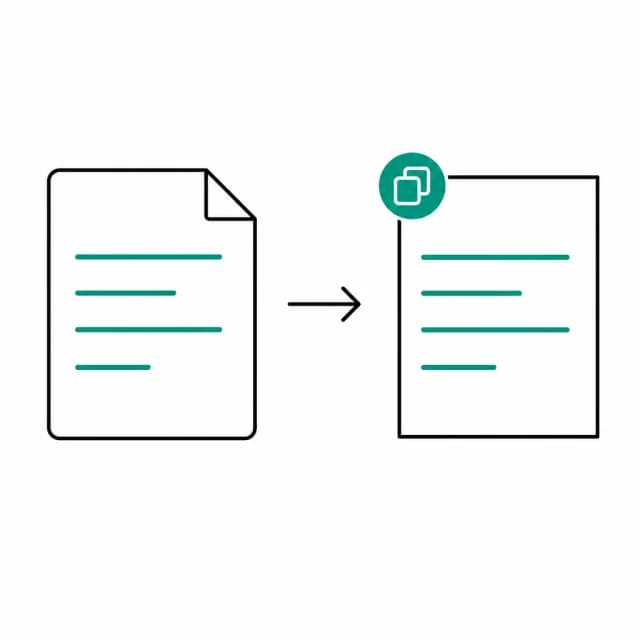
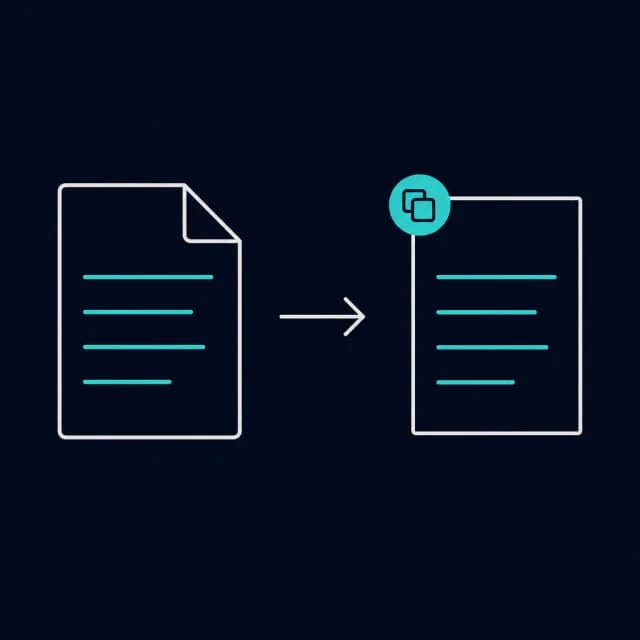
Drop a PDF to extract text
One PDF at a time. Text-based PDFs work best; scanned pages are flagged automatically.
What does PDF to Text actually extract?
PDFBell's pdf to text tool reads a PDF's real, embedded text layer — the same selectable text you could highlight in a PDF viewer — and pulls it out page by page into plain text you can copy, search, or paste anywhere. It's built for the common case of needing a document's words without its formatting: pasting a contract clause into an email, feeding a report into another app, or just searching a long PDF's content faster than scrolling through it.
Extraction runs in this browser tab using pdf.js, the open-source engine behind Firefox's built-in PDF viewer, so the PDF is never sent to a server. Each page is processed in order, and the result is assembled into one block of text you can review before copying or downloading.
Not every PDF has a text layer to extract. Scanned documents — a paper page photographed or run through a flatbed scanner — are really just an image sitting inside a PDF wrapper, with no underlying text a computer can read. This tool checks every page for that case automatically: if a page comes back empty, it's flagged so you're not left staring at a blank result wondering what went wrong, and pointed toward OCR PDF, which recognizes text inside scanned images instead of extracting an existing layer.
Once extraction finishes, the plain text sits in a scrollable box ready to copy to your clipboard in one click or download as a standalone .txt file, with a blank line between pages. It is just the words your PDF already contained, in a format any text editor, search tool or translation app can use.
How to convert PDF to text
- Step 1
Add your PDF
Drag and drop a PDF onto the upload area, or click Browse files to choose one from your device.
- Step 2
Text is extracted automatically
Each page's embedded text layer is read in your browser, in page order, with no options to configure.
- Step 3
Check for scanned pages
Any page with no text layer is flagged, so you know at a glance if part of the document needs OCR instead.
- Step 4
Copy or download the result
Click Copy text to put it on your clipboard, or Download .txt to save it as a plain text file.
What is extracted text useful for?
Pull a quote or clause out of a contract
Grab exact wording from a PDF agreement to paste into an email or another document.
Search a long report's content
Extract the full text so you can search it in a text editor faster than scrolling through pages.
Feed a document into another tool
Get a PDF's plain text ready to paste into a translator, summarizer, or word processor.
Check whether a PDF is text or a scan
Run any PDF through the tool to instantly see whether it has a real text layer or needs OCR.
PDF to Text limits and edge cases
- Only text that already exists as text is extracted. Scanned pages and pictures of text return nothing; a page counts as empty if it yields fewer than 3 characters, and the tool then points you to OCR PDF.
- Layout is flattened. Each page comes out as one continuous run of text with spaces instead of line breaks, and pages are separated by a blank line. Columns, tables and footnotes appear in the order the PDF stores them, which can differ from the reading order.
- Text that has been drawn as vector outlines, or is part of an image, can't be extracted even though it looks like text on screen.
- Nothing but the characters is kept: fonts, bold, sizes, colors and images are not included.
- A PDF that needs a password to open is rejected with a message asking you to remove the password. PDFs that only carry owner restrictions (no password to open) work here, since the file is only read, not rewritten.
Frequently asked questions
Why is the extracted text empty for some pages?
Those pages are likely scanned images with no embedded text layer. Try OCR PDF, which recognizes text inside scanned pages instead of extracting an existing layer.
Does this tool keep the PDF's original formatting?
No. You get plain text only: no fonts, columns or tables, and no line breaks within a page, which come out as one continuous run of text. For a formatted result, try PDF to Word.
Can it read text from a scanned PDF?
Not by itself. It reads the text layer a PDF already has, and a scan is only a picture of text. Run OCR PDF instead, which recognizes the text and can give you plain text directly or a searchable PDF.
What is the difference between PDF to Text and PDF to Word?
PDF to Text returns plain text with no structure. PDF to Word rebuilds paragraphs and headings in a .docx file by comparing font sizes and positions, so it keeps a little more of the document's shape.