By The PDFBell Team
OCR a Scanned PDF in Your Browser: How It Works and Its Limits
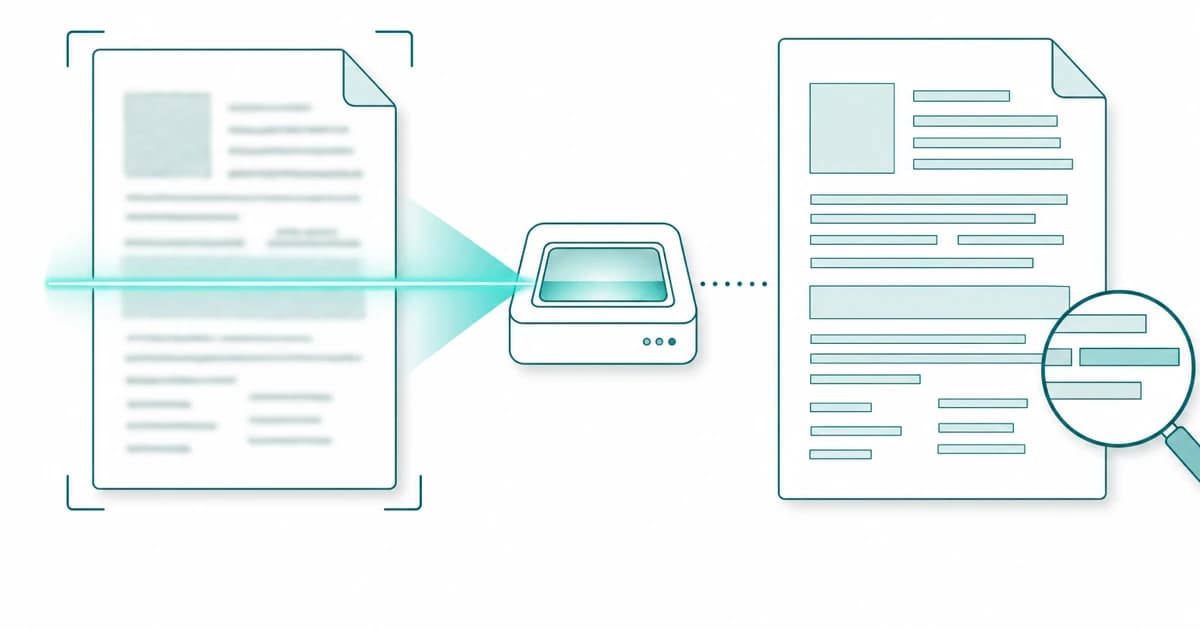
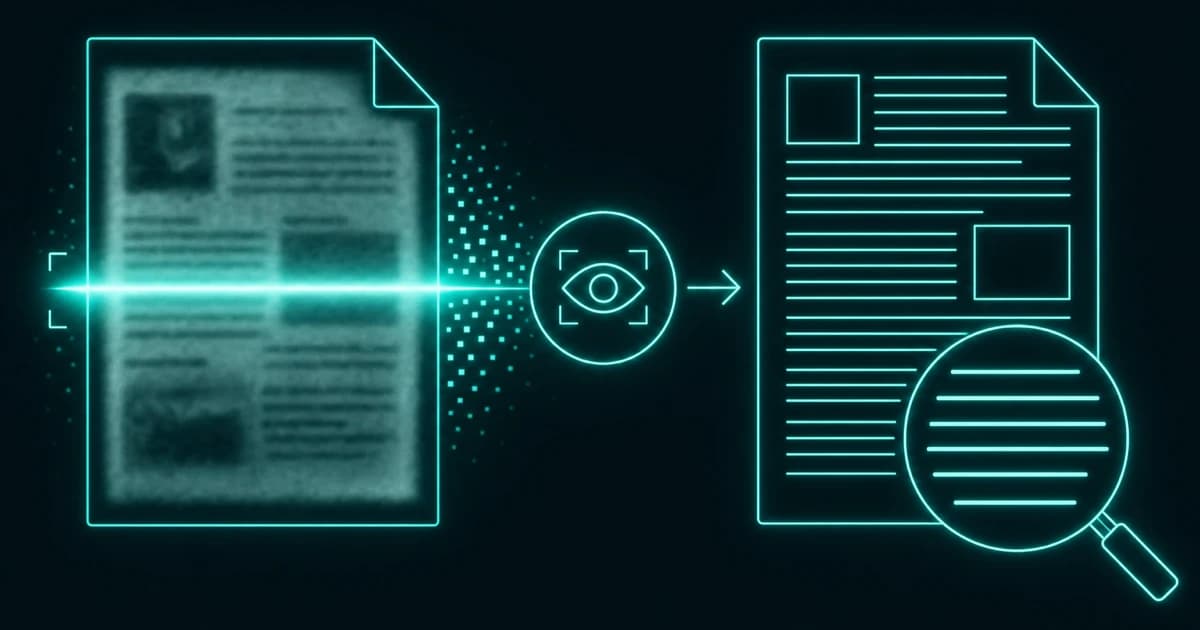
A scanned PDF looks like a document but behaves like a photograph. You can read it with your eyes, but your computer sees only a picture — try to search it or copy a sentence and nothing happens, because there is no text underneath, just pixels. Optical character recognition, or OCR, is the step that bridges that gap: it looks at the image, works out which letters are which, and gives the document a real, searchable text layer.
This guide is about doing that in your browser, without sending the document anywhere. It covers what OCR actually adds to a scan, which languages the tool can read, and — the part worth being realistic about — where recognition is reliable and where it starts to make mistakes.
Why you can’t select text in a scan
When a document is created digitally — exported from a word processor, say — it carries a text layer: the actual characters, which is why you can highlight, search, and copy them. A scan or a photo of a page has none of that. It is an image of text, and to the file there is no difference between a paragraph and a picture of a cat; both are just arrangements of coloured dots.
That is why searching a scanned PDF turns up nothing and why copying “text” from it is impossible. Nothing is broken — there simply are no characters in the file to find. OCR is what creates them.
What OCR does, and where it runs
OCR examines the image, detects where the text is, and recognises the shapes of the letters and words, producing machine-readable characters from the picture. The recognition uses models from the open-source PaddleOCR project. The tool then attaches the recognised characters back onto the page as an invisible text layer positioned line by line over the visible text — so the document still looks identical, but is now searchable and selectable — or hands you the recognised text on its own if that is what you need.
All of this happens in your browser. The recognition engine and its language models are downloaded to your device from this site, and the actual analysis runs locally on your machine through ONNX Runtime Web, which runs machine-learning models in the browser so the data never has to leave the device; your scanned document is never uploaded. The first run downloads roughly 11 MB of engine code plus roughly 21 MB of models for English, Chinese or Japanese, or roughly 31 MB for the other Latin-alphabet languages, and recognition runs on a single thread, so long multi-page scans take a while. That is unusual for OCR, which has traditionally been a server-side, send-us-your-file affair — here it stays on your device, which matters a great deal when the thing you are digitising is a contract or a medical record.
Which languages it can read
The tool recognises English and the common Latin-alphabet languages — French, German, Spanish, Portuguese, Italian, and Dutch among them — and also recognises Simplified and Traditional Chinese and Japanese. There is one important caveat for those three: the invisible text layer in a searchable PDF uses a built-in Western European font, so recognised lines containing Chinese or Japanese characters cannot be written into it and are skipped. For those languages, turn off the searchable-PDF option and take the result as plain text instead. You pick the language of your document before running it, which helps the engine choose the right model and improves accuracy.
It is worth being upfront about one gap: Korean is not currently supported, because the underlying engine version does not include a Korean model. If your document is in Korean, this particular tool is not the right fit. For the languages it does cover, selecting the correct one before you start makes a noticeable difference to the result.
Where accuracy holds up and where it slips
On a clean, straight, reasonably high-resolution scan of printed text, modern OCR is very good — good enough that most words come through correctly and the document becomes genuinely searchable. Pages that carry a rotation flag are mapped correctly, and slightly tilted lines of text are recognised and placed at their detected angle. That covers the common case of a decent office scan.
Accuracy drops where the input fights back. Low-resolution or blurry scans, heavy skew, heavy background patterns or coloured paper, very small type, unusual decorative fonts, and especially handwriting all push error rates up, because the letter shapes become harder to tell apart. The tool also drops lines it is not confident about (anything scoring below 0.5), so very faint or garbled text may be missing rather than wrong. OCR is a best-effort reading, not a guaranteed transcription, so for anything important — names, figures, legal wording — treat the output as a strong draft and proofread it against the original rather than trusting it blindly.
Searchable PDF, plain text, and what comes next
Once a document has been through OCR you have options. Keeping the searchable-PDF form is ideal when you want the page to look exactly as scanned but also be findable and copyable. Taking the plain text instead is better when you only need the words — to paste into an email, quote, or feed into another tool. And because OCR gives a previously image-only file a real text layer, it also unlocks the next steps: an OCR’d PDF can then be extracted as clean text or converted toward an editable Word document, neither of which was possible while it was still just a picture. Two practical notes: the whole document is recognised, with no page-range option, so extract the pages you need first to save time; and a PDF that opens without a password but carries editing restrictions can be read as plain text, while the searchable-PDF option refuses it, because PDFBell cannot decrypt files and rewriting it would leave it blank or unreadable.
Frequently asked questions
Why can’t I select or search the text in my scanned PDF?
Because a scan is an image of a page, not a text document — there are no characters in the file, only pixels, so there is nothing for search or selection to grab. Running OCR analyses the image, recognises the letters, and adds a real text layer, after which the document becomes searchable and selectable.
Does the OCR run on a server, or is my file uploaded?
It runs in your browser. The recognition engine and language models download to your device from this site, and the analysis happens locally; your scanned document is never sent to a server. What moves across the network is the engine arriving at your file, not your file being shipped off to be read elsewhere.
Which languages does the OCR support?
English and common Latin-alphabet languages such as French, German, Spanish, Portuguese, Italian, and Dutch, plus Simplified and Traditional Chinese and Japanese. You select your document’s language before running it. Chinese and Japanese text is returned as plain text only, since it cannot be written into a searchable PDF’s text layer. Korean is not currently supported, as the underlying engine version has no Korean model.
How accurate is the recognition?
On clean, straight, reasonably high-resolution scans of printed text it is very accurate, and slightly tilted text lines are handled. Accuracy falls on blurry or low-resolution scans, heavy skew, very small or decorative fonts, busy backgrounds, and handwriting. Because OCR is a best-effort reading rather than a perfect transcription, proofread the output against the original for anything important.
Sources
- PaddleOCR on GitHub — PaddleOCR is an open-source OCR toolkit whose PP-OCR models cover many languages; PDFBell uses its PP-OCRv5 and PP-OCRv6 models.
- ONNX Runtime: Web tutorials — ONNX Runtime Web runs machine-learning models in the browser with WebAssembly, and because data never leaves the device it is a safer way to run inference.