Organize PDF Pages Online
Drag thumbnails to put pages in the right order, rotate any page 90° at a time, and download — free and completely private.
Drop a PDF to organize
One PDF at a time. Every page becomes a thumbnail you can drag into a new order.
How do you reorder and rotate PDF pages?
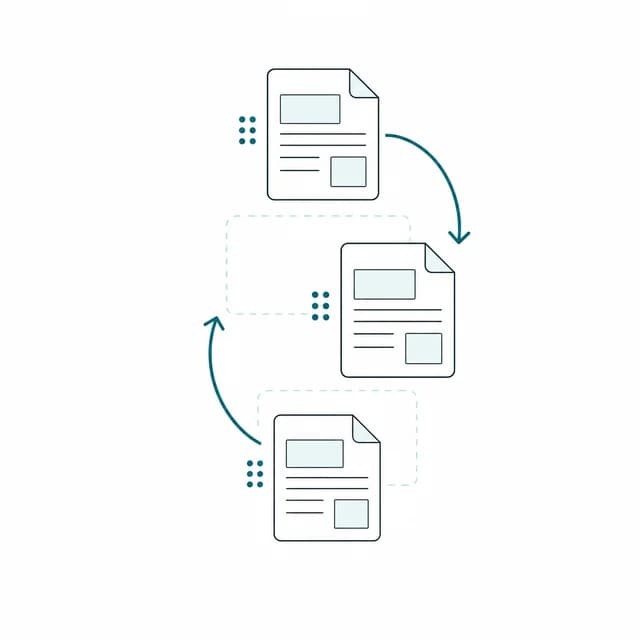
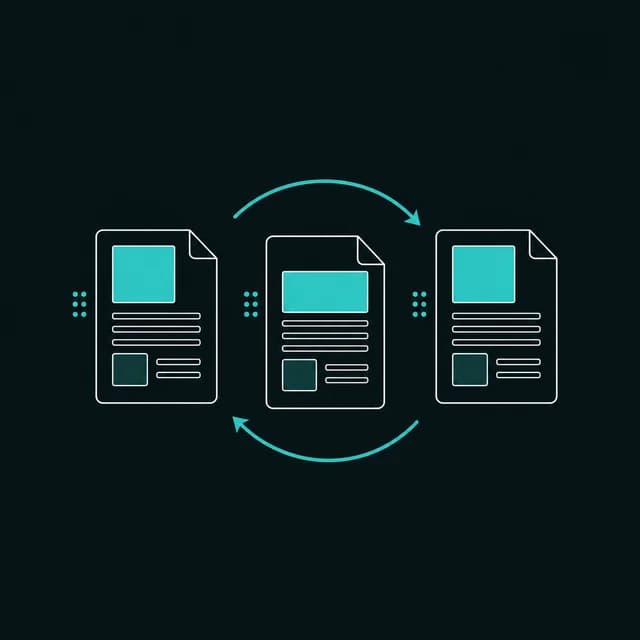
PDFBell's organize PDF pages tool turns a document into a grid of thumbnails you can drag into any order, so fixing a scanned document that came out of order, or rearranging a report before sending it, takes seconds instead of reprinting and rescanning. Every page in the document appears as its own draggable tile — pick one up, drop it where it belongs, and the rest of the pages shift to make room.
Each thumbnail is rendered in this browser tab from your original file, and the reordered document is rebuilt on your own device, so nothing is sent to a server. That is worth knowing when the document you are organizing is a signed agreement or a set of exam papers.
Beyond reordering, each thumbnail has its own rotate control: click it once to turn that page 90° clockwise, and click again to keep turning it, independently of every other page in the document. That's useful when a scanner captured one or two pages sideways or upside down while the rest came out correctly — instead of rescanning the whole stack, just rotate the pages that need it and leave the rest untouched. Drag handles and the move-up/move-down buttons both work, so the tool is usable with a mouse, a touchscreen, or a keyboard.
People reach for an organize PDF pages tool for a lot of everyday reasons: putting a stack of scanned pages back into reading order, moving a signature page to the front of a contract, rearranging chapters in a report before sharing it, or fixing a handful of sideways pages in an otherwise correctly scanned document. Because the whole page count is preserved — organizing only changes order and rotation, never how many pages you end up with — there's nothing to double-check afterward besides the new page order itself.
How to organize a PDF
- Step 1
Upload your PDF
Drag and drop a PDF onto the upload area, or click Browse files to pick it from your device.
- Step 2
Drag pages into order
Drag any thumbnail to a new position, or use the move-up and move-down buttons, until the pages are in the order you want.
- Step 3
Rotate pages that need it
Click a thumbnail's rotate button to turn that page 90° at a time, independently of the rest of the document.
- Step 4
Save and download
Click Organize PDF. The file is rebuilt in the new order and downloads once the ding! plays.
What does reordering fix?
Fix a scanned document's page order
Put pages from a document feeder or scanning app back into the correct reading order after a scan.
Move a signature page to the front
Rearrange a signed contract so the signature page appears where a recipient expects it.
Straighten a few sideways pages
Rotate one or two pages a scanner captured sideways or upside down, without rescanning the whole document.
Reorder chapters or sections
Rearrange the sections of a report or packet into the order you'll present or submit them.
Organize PDF limits and edge cases
- Reorder and rotate only. Every page you start with is in the output, so you can't add or remove pages here; use Delete PDF Pages, Extract PDF Pages or Merge PDF for that.
- Rotation is cumulative and clockwise. Each click adds 90° to that page's existing rotation, so three clicks give a quarter-turn the other way.
- Bookmarks and fillable-form definitions are not carried into the reorganized file, and the document properties (title, author) start blank. Use PDF Metadata Editor to add them back.
- The grid renders one thumbnail at a time, so a long document fills in gradually and a very long PDF uses more memory.
- A PDF that needs a password to open is rejected. A PDF that opens without a password but carries editing restrictions (a permissions password) is also refused with a clear message, because PDFBell cannot decrypt files and the result would come out blank or unreadable; remove the restriction in the app that created it, then try again.
Frequently asked questions
Does organizing change how many pages are in my document?
No. Organizing only changes the order and rotation of existing pages — every page you started with is still in the final file.
Can I rotate just one page instead of the whole document?
Yes. Each thumbnail has its own rotate button, so you can turn a single sideways page 90° at a time without affecting any other page.
Can I reorder pages with a keyboard instead of dragging?
Yes. Every thumbnail also has move-up and move-down buttons, so you can reorder the document without dragging.
How do I rotate a page counter-clockwise?
The rotate button always turns a page 90° clockwise, so click it three times for a 90° counter-clockwise turn (270° clockwise).
Will bookmarks and form fields survive reordering?
No. The pages and their visible content are kept, but the document-level bookmarks and form definition are not, so fillable fields may stop being fillable. Reorder first and recreate those afterwards if you need them.