OCR a Scanned PDF Online
Recognize the text hiding inside a scanned or photographed PDF — in English, French, German, Spanish, Portuguese, Italian, Dutch, Chinese, or Japanese — and make it searchable, selectable, and copyable, free and entirely on your device.
Drop a scanned PDF to run OCR
One PDF at a time. Works best on clear, printed pages — larger or multi-page files take longer to process.
How does OCR on a scanned PDF work?
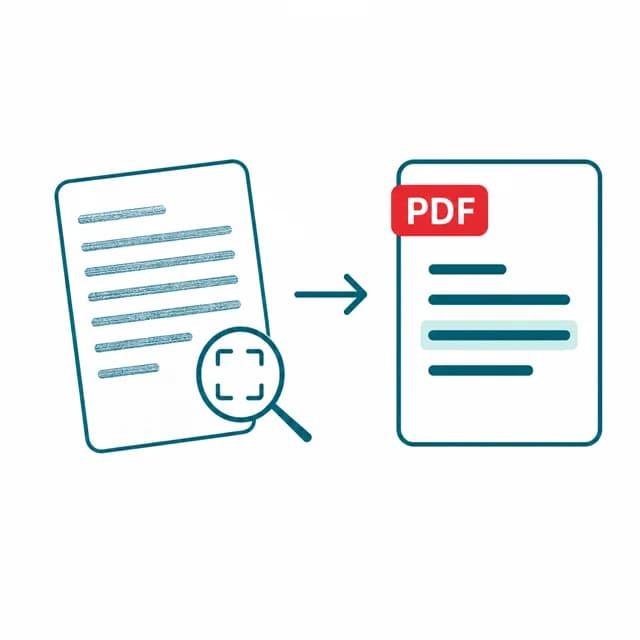
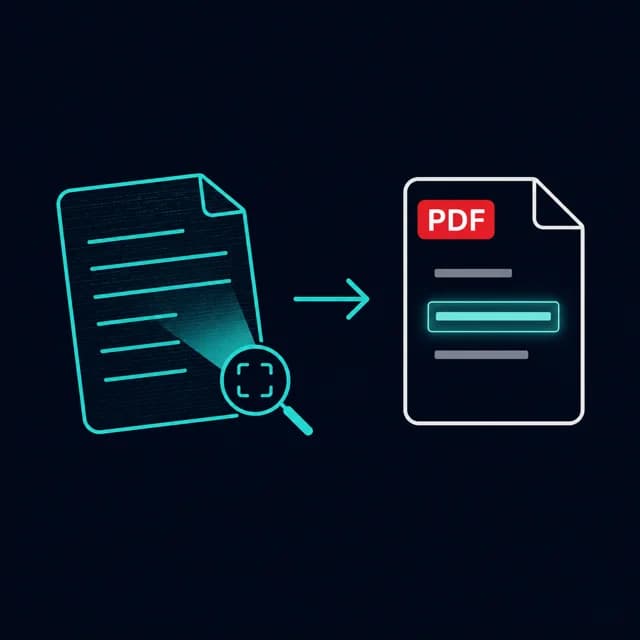
PDFBell's OCR PDF tool reads the text sitting inside a scanned or photographed page — a paper document run through a scanner, a photo of a printed page, or any PDF built from images rather than a real text layer — and recognizes it as actual, selectable text. Pages like this look like a normal PDF but contain nothing a computer can search, copy, or index; OCR (optical character recognition) is what turns the picture of the words back into the words themselves.
Recognition runs in this browser tab using PaddleOCR, an open-source detection-and-recognition engine compiled to WebAssembly (ONNX Runtime Web). The engine files and recognition models are served from pdfbell.com rather than a third-party CDN, and your pages are never sent to a server. Pick the language printed on the page — English, French, German, Spanish, Portuguese, Italian, Dutch, Chinese (Simplified or Traditional), or Japanese — and the matching model downloads when you run OCR. Each page is rendered at twice its native size, then processed one at a time, with a progress bar showing where the run is.
Two outputs are available. The default, a searchable PDF, keeps every page looking exactly like the original scan but adds an invisible text layer underneath it, positioned line by line from the exact quadrilateral PaddleOCR detected for each line of text — including pages that carry their own rotation, so a page you turned 90° or 180° with rotate-pdf still gets an invisible text layer that lines up correctly once a PDF viewer re-applies that rotation. The page still looks like a photograph, but you can now select, search, and copy text from it in any PDF viewer. Turning that option off instead gives you the recognized words as plain text, useful when you just need to pull the content out rather than keep the scanned page's appearance.
OCR works best on clear, well-lit, printed text — a flatbed-scanned page or a clean phone photo of a document typically recognizes accurately. Low-contrast scans, heavy skew, handwriting, and unusual fonts reduce accuracy, the same limitation every OCR engine shares, not something specific to this tool. If a PDF already has a real text layer, pdf-to-text extracts it directly and is faster — this tool is specifically for the pages that don't.
How to OCR a PDF
- Step 1
Add your scanned PDF
Drag and drop a PDF onto the upload area, or click Browse files to choose one from your device.
- Step 2
Choose the OCR language
Pick the language printed on the page from the OCR language dropdown — English is selected by default.
- Step 3
Choose your output
Leave "Create searchable PDF" on to keep the scan's appearance with an invisible text layer, or turn it off for plain text only.
- Step 4
Run OCR
Click Run OCR. Each page is rendered and recognized in your browser, with a progress bar showing which page is currently processing.
- Step 5
Download the result
When the ding! plays, download the searchable PDF or the recognized text, or copy the text straight from the page.
What is OCR good for?
Make an old scanned contract searchable
Turn a scanned agreement into a PDF you can Ctrl+F through instead of scrolling page by page looking for a clause.
Recognize text from a phone photo
Run OCR on a PDF built from photographed pages — a whiteboard, a printed handout, a book page — to get usable text out of it.
Archive paper documents properly
Scan and OCR paper records so they're both preserved as images and searchable/indexable going forward.
Pull text out of a scanned receipt or form
Turn the searchable PDF option off to get the recognized words as plain text for pasting into a spreadsheet or note.
OCR PDF limits and edge cases
- The whole document is recognized. There is no page-range option, so extract the pages you need first with Extract PDF Pages to save time.
- The first run downloads the engine and a model: a worker script of roughly 11 MB plus roughly 21 MB of models for English, Chinese or Japanese, or roughly 31 MB for French, German, Spanish, Portuguese, Italian or Dutch. Recognition is single-threaded WebAssembly, so long multi-page scans take a while.
- In a searchable PDF the invisible text layer uses a built-in Western European font. A recognized line containing characters outside that set, which includes all Chinese and Japanese text, can't be written to the layer and is skipped. Turn off "Create searchable PDF" to get that text as plain text instead.
- The text layer is positioned line by line, not word by word, so search highlights and text selection cover whole lines.
- Low-confidence lines are dropped: recognized lines scoring below 0.5 are filtered out, so very faint or garbled text may be missing rather than wrong. Handwriting, heavy skew and low-resolution scans reduce accuracy.
- A PDF that needs a password to open is rejected with a message asking you to remove the password. A PDF that opens without a password but carries editing restrictions (a permissions password) can be read as plain text, but "Create searchable PDF" refuses it with a clear message, because PDFBell cannot decrypt files and rewriting the PDF would make it blank or unreadable.
Frequently asked questions
What's the difference between the two output options?
"Create searchable PDF" keeps the original scanned page's appearance and adds an invisible text layer you can select and search. Turning it off gives you the recognized words as plain text only, with no PDF produced.
What languages does this tool recognize?
English, French, German, Spanish, Portuguese, Italian, Dutch, Chinese (Simplified and Traditional), and Japanese. Pick the language printed on your page from the OCR language dropdown before running OCR; its recognition model downloads automatically when you run it.
Can I run OCR on only some pages?
No, every page of the PDF is recognized. To OCR just a few pages, pull them out first with Extract PDF Pages, then run OCR on the new file.
Does the searchable PDF work for Chinese and Japanese?
The text is recognized, but the invisible text layer in the PDF can only hold Western European characters, so lines containing Chinese or Japanese characters are skipped there. Turn off “Create searchable PDF” to download the full recognized text as plain text.
Why did some words come out wrong?
OCR accuracy depends on scan quality — low resolution, skewed pages, poor lighting, and handwriting all reduce recognition accuracy. Clear, well-lit, printed pages recognize the most reliably.
Does this work on pages that have been rotated?
Yes. If a page carries its own rotation (for example, one turned 90° or 180° with rotate-pdf, or a scanner that saved a landscape page as portrait), the searchable PDF's invisible text layer is positioned to match that rotation, not just the page's raw, unrotated content.