Extract PDF Pages Online
Pick the pages you need from a thumbnail grid and save just those as a new PDF — free and completely private.
Drop a PDF to extract from
One PDF at a time. Choose the pages you want to keep from a thumbnail grid.
How do you pull pages out of a PDF?
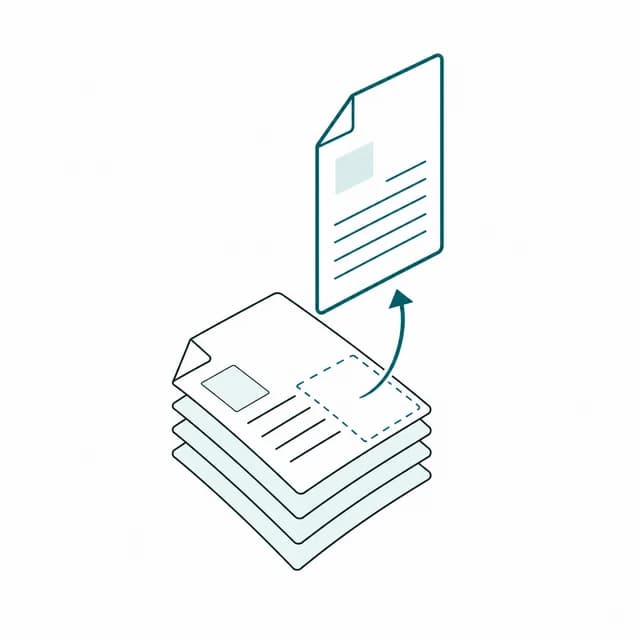
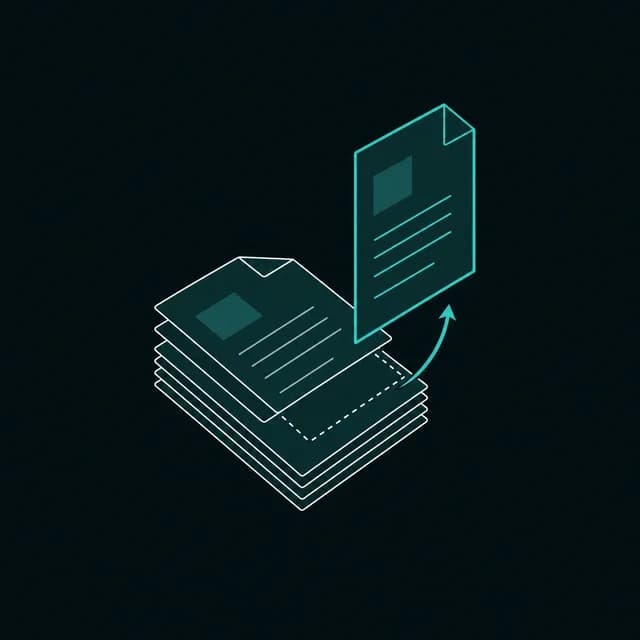
PDFBell's extract PDF pages tool lets you pull specific pages out of a document and save just those pages as a brand-new, standalone PDF — a visual thumbnail grid of every page makes it easy to see exactly what you're picking. Click a page to mark it for the new file, click again to change your mind, or type a range like "2, 5-7" to select several at once. Once your selection looks right, export it in a single click.
Every thumbnail is rendered in this browser tab, and the new file is assembled on your own device, so nothing is sent to a server. That matters when the source document is a signed contract or a medical record and you only want to share one exhibit or receipt out of it.
The result is a genuinely new, independent PDF — the pages you picked, in the order they originally appeared, with no trace of the pages you left out. That's different from just cropping or viewing a page: the file you download is complete on its own, safe to send, print, or archive without also handing over content you didn't choose to include.
People extract PDF pages for practical reasons: pulling a single invoice or receipt out of a long statement, saving one exhibit from a legal filing, sharing just the results page of a lab report instead of the whole file, or lifting one chapter out of a textbook for a student. A running selection count keeps track of how many pages you've chosen before you export.
How to extract pages from a PDF
- Step 1
Upload your PDF
Drag and drop a PDF onto the upload area, or click Browse files to pick it from your device.
- Step 2
Pick the pages to keep
Click thumbnails to mark pages, or type a range like "2, 5-7" and add it to your selection in one step.
- Step 3
Review your selection
Check the running count of selected pages, and clear the selection any time to start over.
- Step 4
Extract and download
Click Extract Pages. The new file is ready as soon as the ding! plays.
When do you need only a few pages?
Pull one invoice out of a statement
Save a single invoice or receipt page out of a long combined statement as its own file.
Share one exhibit from a legal filing
Export just the exhibit or attachment a recipient needs, without sending the entire filing.
Save just the results page of a report
Keep only the summary or results page of a lab, credit, or inspection report to share.
Lift a chapter out of a longer document
Extract one chapter or section from a textbook or manual as a standalone PDF.
Extract PDF pages limits and edge cases
- Only the pages you select are copied into the new file, and your original file is never modified. Pages always appear in their original order, however you clicked them; use Organize PDF afterwards to change the order.
- Bookmarks and fillable-form definitions from the source are not carried into the new file, and its document properties (title, author) start blank. Use PDF Metadata Editor to add them back.
- The range field accepts page numbers and ranges separated by commas, such as "2, 5-7". A page number beyond the last page is rejected.
- Because the new file is built from copies of the selected pages, it is the safer choice when you need to share a few pages without the rest; Delete PDF Pages only unlinks the removed pages.
- The thumbnail grid renders one page at a time, so a long document fills in gradually and a very long PDF uses more memory.
- A PDF that needs a password to open is rejected. A PDF that opens without a password but carries editing restrictions (a permissions password) is also refused with a clear message, because PDFBell cannot decrypt files and the extracted pages would come out blank or unreadable; remove the restriction in the app that created it, then try again.
Frequently asked questions
Does the extracted file keep the original page order?
Yes. However you click or type your selection, the exported pages always appear in the same order they had in the source document.
What happens to the pages I didn't select?
They're simply left out — the exported file contains only the pages you chose, and your original uploaded file is never modified.
Can I select pages by typing instead of clicking every thumbnail?
Yes. Type a range like "2, 5-7" into the range field and add it to your selection in one step, then fine-tune with individual clicks if needed.
Is extracting safer than deleting when I want to share only a few pages?
Yes. Extract PDF Pages builds a new file from only the pages you select, while Delete PDF Pages just unlinks the removed pages from the page list and does not purge their data from the file.
I want to remove pages instead of saving a smaller set — what should I use?
Try Delete PDF Pages instead — it removes the pages you pick and keeps the rest, the opposite selection logic from this tool.