By The PDFBell Team
How to Merge PDFs Without Uploading Them
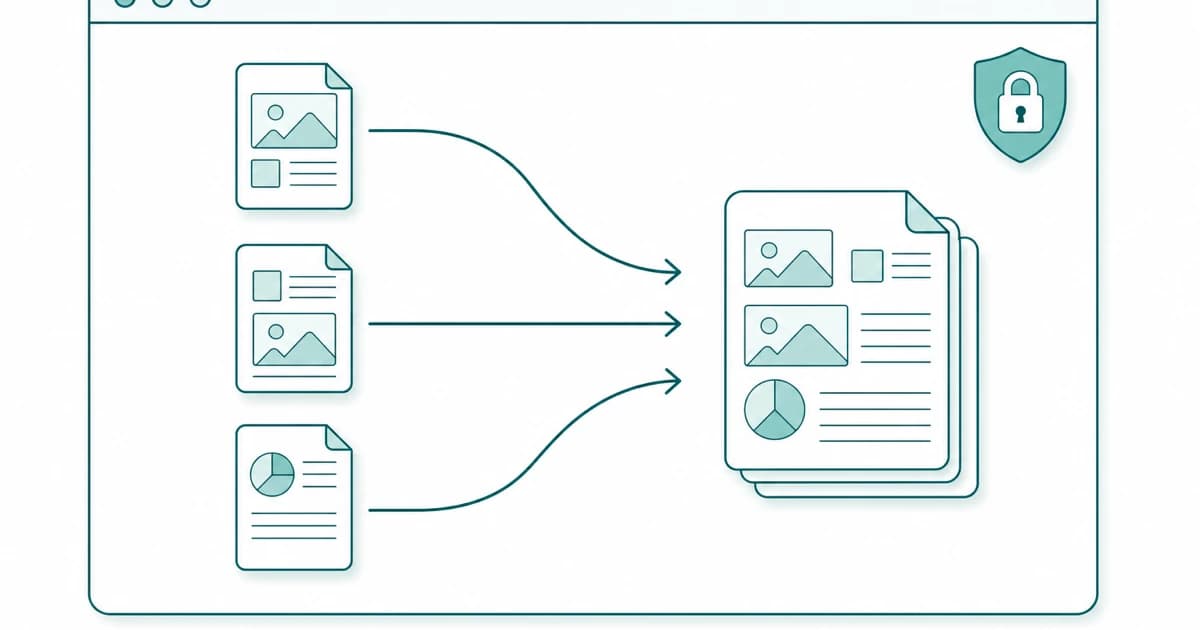
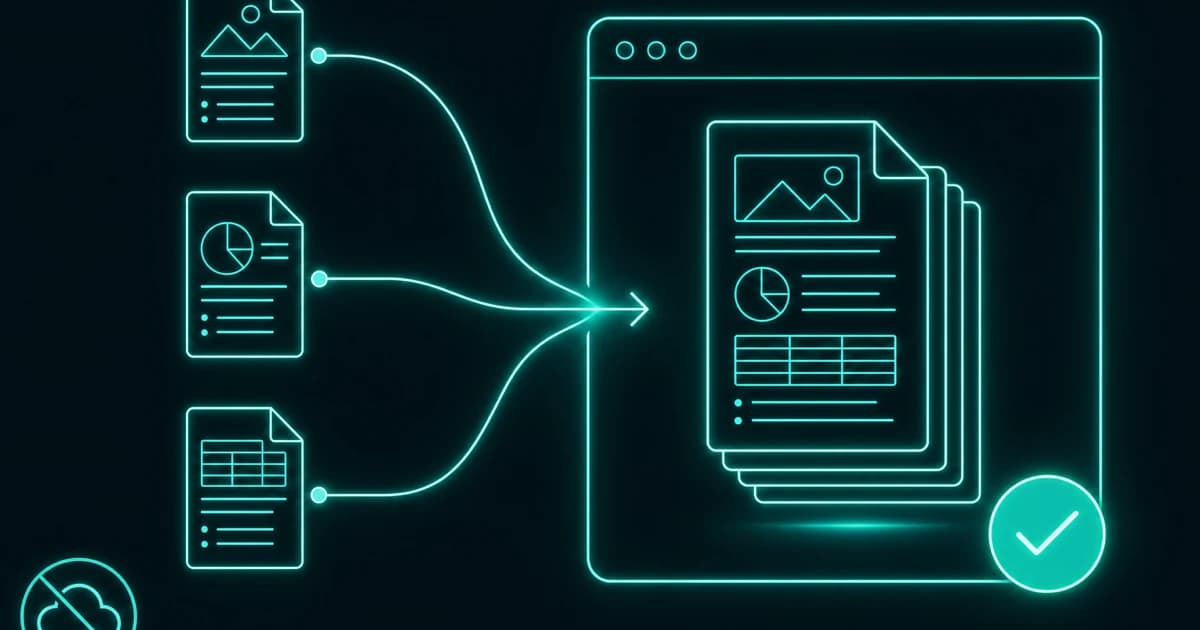
Combining a few PDFs into one is one of the most common things people do with documents, and it is also one of the easiest to do carelessly. The typical route — search for a merge tool, drag your files in, download the result — often means each of those files is sent to a stranger’s server first. For a stack of scanned receipts that might be fine. For a merged bundle of a contract, an ID scan, and a bank letter, it means handing a complete dossier to a company you know nothing about.
You do not have to make that trade. Modern browsers can merge PDFs on your own device, with the files never leaving the page. This guide walks through doing exactly that, how to arrange the pages the way you want, and — the part most guides skip — how to confirm for yourself that nothing was uploaded.
Why “upload to merge” is worth avoiding
A merge is often the moment several separate documents become one sensitive whole. Individually, a photo of your passport and a utility bill are ordinary; stapled together into a single PDF, they are a ready-made identity package. When that combining happens on someone else’s server, a copy of the finished bundle — and usually the source files too — exists on hardware you do not control, subject to that operator’s retention, logging, and access policies rather than your own.
The safer default is simple: if a document is something you would not email to a random address, do not upload it to a random tool either. A browser-based merge sidesteps the question entirely, because there is no server copy to worry about in the first place.
Merge PDFs in your browser, step by step
Open the merge tool and add your files by dragging them onto the drop area or clicking to browse for them; you can queue up to 20 files per merge. Nothing is sent anywhere when you do this — the browser simply reads the files into memory on your device.
Once the files are listed, put them in the order you want them to appear in the final document. The first file becomes the opening pages, the last one the closing pages. When the order looks right, start the merge; the tool stitches the documents together and hands you a single combined PDF as a normal download. When the combined size is over 10 MB, the merge runs in a background worker thread so the page stays responsive, and if anything about that path fails the tool quietly falls back to the main thread rather than erroring out. The pages are copied into a new document with the open-source pdf-lib library.
That download is the finished file, generated on your machine. You can rename it, open it to check the result, and delete the originals — none of which ever touched a server.
Two limits are worth knowing. A PDF that needs a password to open is rejected, and so is one that opens freely but carries a permissions (editing-restriction) password: the pdf-lib library does not support encrypted documents, so merging such a file would produce blank pages, and PDFBell refuses it with a clear message instead. Save an unrestricted copy in the app that created it and merge that. Also, the merged file starts with fresh document properties, and each source’s bookmarks and fillable-form definitions are not carried over, so recreate them afterwards if you need them.
Reordering and checking before you combine
Order matters more than people expect, because fixing it afterwards means splitting the document back apart. Before you merge, glance down the list and confirm each file is where it should be — cover letter first, appendices last, and so on. It is worth spending ten seconds here to avoid re-doing the whole thing.
If you realise partway through that you only need some pages from a file, it is cleaner to trim that file first and then merge, rather than merging everything and cutting later. Splitting or deleting pages beforehand keeps the final document tidy and avoids a second round of edits.
How to confirm the file never left your browser
You should not have to trust a claim like this on faith, and you do not have to. Open your browser’s developer tools, switch to the Network panel, and run the merge. If the tool were uploading your documents, you would see a large outbound request carrying them the moment processing began. With a browser-based merge you will see the page and its engine load, and then no outbound transfer of your file at all.
A quicker sanity check is to load the tool, disconnect from the internet, and merge anyway. If it still produces the combined PDF, the work was happening locally — an uploader would have stalled the moment the connection dropped. The How we verify page explains these checks, and what the site’s content security policy rules out, in more detail.
When a desktop app still makes sense
Browser-based merging is bounded by your device’s memory, because everything happens inside the tab. For everyday jobs — a handful of files, even fairly large ones — that is a non-issue. But if you are combining dozens of big scans at once and your device is modest, a dedicated desktop application with direct access to system resources may handle the load more comfortably. The honest rule is the same as always: pick the local option that fits the size of the job, and keep sensitive documents off servers you do not control.
Frequently asked questions
Is there a limit on file size or the number of PDFs I can merge?
You can merge up to 20 files per run; if you add more, only the first 20 are kept and a notice says so, so merge in two rounds for larger sets. There is no account tier or paywall. Beyond that, the practical ceiling is your device’s memory, since the merge runs inside the browser tab. When the combined size is over 10 MB, the merge runs in a background worker thread to keep the page responsive, with an automatic fall back to the main thread if needed.
Will merging reduce the quality of my PDFs?
No. The pages from each source file are copied into the combined document as they are, without re-compressing or re-rendering them, so text stays sharp and images keep their original resolution. A merged PDF is essentially the same pages in a new container, not a re-encoded copy. What is not copied is document-level structure such as bookmarks and fillable-form definitions.
Can I merge PDFs on my phone?
Yes. Because the work happens in the browser rather than on a server, the same tool runs on a phone or tablet, subject to that device’s available memory. Very large batches are more comfortable on a computer, but ordinary merges work fine on mobile.
Do my files get uploaded anywhere during the merge?
No. Your PDFs are read locally by the browser and combined on your device, never transmitted to a server. The simplest proof is to disconnect from the internet once the page has loaded and merge anyway — it still works, because nothing ever needed to be uploaded.
Sources
- pdf-lib on GitHub — pdf-lib runs in the browser, copies pages between documents with copyPages(), and does not support encrypted documents.
- MDN: Using Web Workers — Workers run scripts in background threads without interfering with the user interface.
- Chrome DevTools: Inspect network activity — The Network panel logs all network activity so you can confirm what a page sends.