By The PDFBell Team
How to Convert HEIC Photos to PDF From Your iPhone
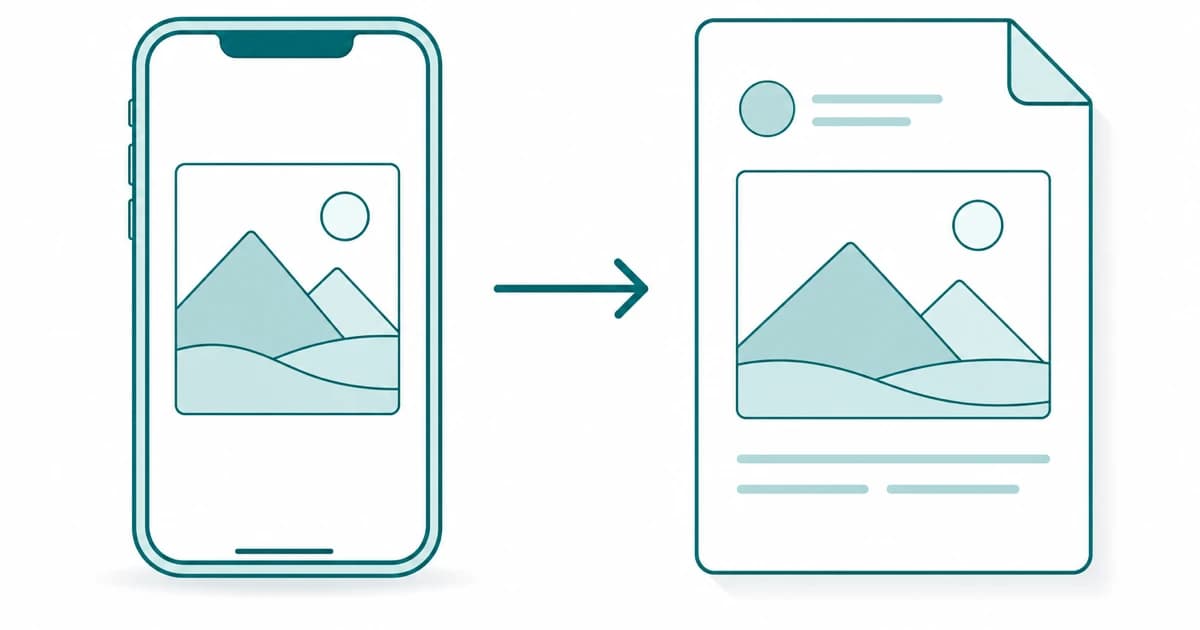
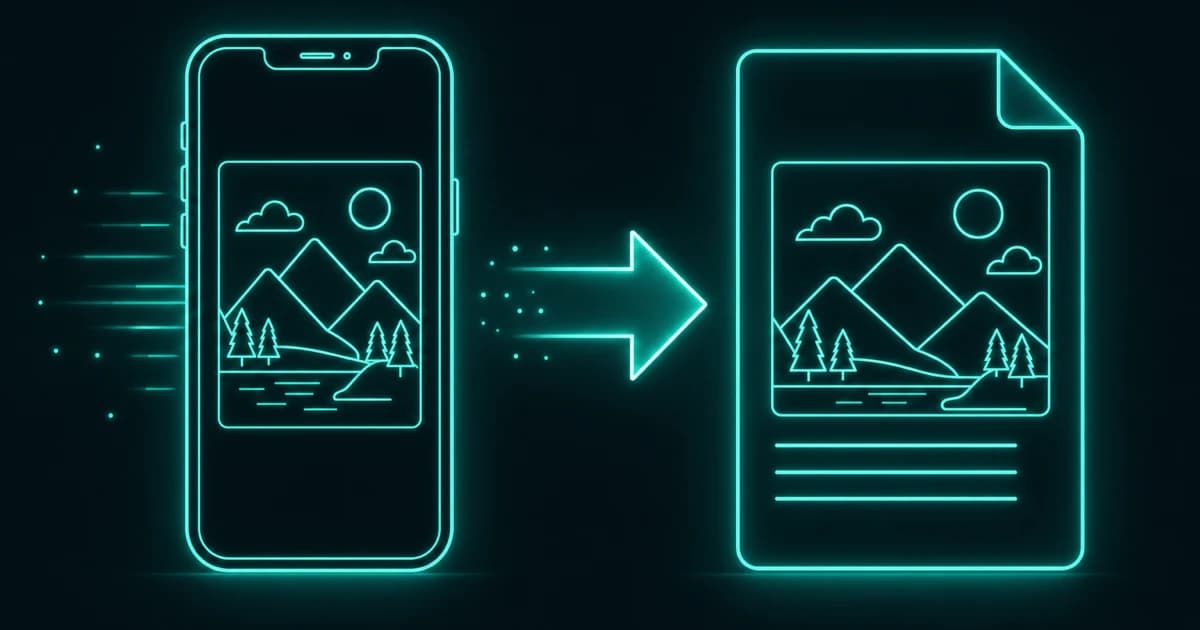
If you have ever tried to send a photo straight off your iPhone and been told the file “can’t be opened,” you have met HEIC. Since iOS 11, compatible iPhones save photos in this format by default (unless you switch the Camera format to Most Compatible), and while it is excellent at keeping file sizes small, it has a habit of confusing everything that is not an Apple device. Turning those photos into a PDF is often the simplest way to make them open anywhere — and to bundle several into one tidy document.
This guide explains what HEIC is, why it trips up so many apps and websites, and how to convert HEIC photos into a PDF right in your browser without uploading them. It also covers combining multiple shots into a single file, which is handy for photographed receipts, forms, and paperwork.
What HEIC is and why your iPhone uses it
HEIC is Apple’s name for images saved in the HEIF format, a modern successor to JPEG. Its main advantage is efficiency: according to Apple’s support documentation, HEIF offers better compression than JPEG, so photos use less storage space while preserving the same visual quality, which is why your iPhone can hold so many pictures without filling up. For storing and viewing photos on Apple devices, it is a genuinely good choice.
The catch is that “modern and efficient” is not the same as “universally supported.” Because HEIC is newer and was popularised by Apple, plenty of other software — especially on Windows, older phones, and many web upload forms — still does not know how to open it.
The problem: HEIC does not open everywhere
The moment a HEIC photo leaves the Apple ecosystem, friction appears. A colleague on Windows may double-click it and get an error. A web form that accepts “images” may reject it. A printer or a document system may simply not see it as a picture at all. None of this means anything is wrong with your photo — it just means the receiving software has never learned to read the format.
Converting to PDF neatly sidesteps all of that. Practically everything can open a PDF, so wrapping your photos in one guarantees the person on the other end can actually see them, on any device, without installing anything.
Convert HEIC to PDF in your browser, step by step
Open the HEIC-to-PDF tool and add your photos by dragging them in or browsing for them. Behind the scenes, your browser decodes the HEIC images on your own device — this is real work, because most browsers cannot read HEIC natively, so the tool loads a small decoder built on WebAssembly to do it — and then places each photo onto a PDF page. The decoder is downloaded when you press Convert, so the first conversion in a visit needs a connection and takes a little longer. At no point are your pictures sent to a server.
You can add up to 20 HEIC or HEIF files per run; if you add more, only the first 20 are kept and a notice says so. Arrange the photos in the order you want them to appear, then convert. The tool produces a single PDF containing your images, which downloads straight to your device. Open it to check the result, and you are done — a file anyone can view, made without your photos ever leaving the browser.
Combining several photos into one PDF
One of the most useful things about converting to PDF is that you can gather many photos into a single document. Some HEIC files hold more than one image, such as burst shots, and each embedded image becomes its own page, so the page count can be higher than the file count. If you have photographed a multi-page form, a stack of receipts, or the pages of a printout, add them all at once and put them in reading order before converting. The result is one PDF that scrolls through your shots in sequence, which is far easier to send and file than a dozen loose image attachments.
If you already have a mix of formats — some HEIC, some JPEG — it is fine to convert each set and then merge the resulting PDFs together, so everything ends up in one document regardless of where the photos came from.
Quality and keeping your originals
When a photo is placed into a PDF, it is decoded from HEIC and embedded as an image on the page (A4 and Letter page sizes shrink large photos to fit and never enlarge them), which is perfectly good for sharing, viewing, and printing everyday pictures and documents. If you are archiving photos for the long term or plan to edit them later, it is still worth keeping the original HEIC or a full-resolution JPEG as your master copy, and treating the PDF as the shareable version. That way you get a file everyone can open without giving up your originals. Because the photos are decoded in your browser’s memory, a very large batch of high-resolution shots can fail on a phone or low-memory computer; convert in smaller groups if that happens.
Frequently asked questions
Why can’t I just email the HEIC file directly?
You can, but the recipient may not be able to open it. HEIC is Apple’s default photo format and many systems — particularly Windows, older devices, and some web upload forms — still do not support it, so the file arrives as something they cannot view. Converting to PDF makes the photos openable on essentially any device.
Do my photos get uploaded to a server during conversion?
No. Your HEIC photos are decoded and placed into the PDF entirely within your browser, on your own device. The only thing that crosses the network is the tool’s decoder coming down to you — the traffic runs the opposite way from an upload, with the code travelling to your images rather than your images travelling to a server.
Can I put several photos into a single PDF?
Yes. Add up to 20 photos per run, arrange them in the order you want, and the tool combines them into one PDF with each image on its own page. This is especially handy for photographed forms, receipts, or multi-page documents that you want to send as a single file.
Will converting to PDF reduce my photo quality?
The photo is decoded from HEIC and embedded into the PDF at a quality that is well suited to sharing, viewing, and printing. For everyday use the difference is not noticeable. If you need pristine originals for archiving or later editing, keep the original HEIC or a full-resolution JPEG as your master and use the PDF as the shareable copy.
Sources
- Apple Support: Using HEIF or HEVC media on Apple devices — HEIF and HEVC offer better compression than JPEG and H.264 at the same visual quality, need iOS 11 or later to view and edit, and the Camera can be switched to Most Compatible.
- MDN: WebAssembly — WebAssembly runs alongside JavaScript in the browser, which is how a compiled image decoder can run inside the page.