By The PDFBell Team
How to Remove or Clear PDF Metadata for Privacy
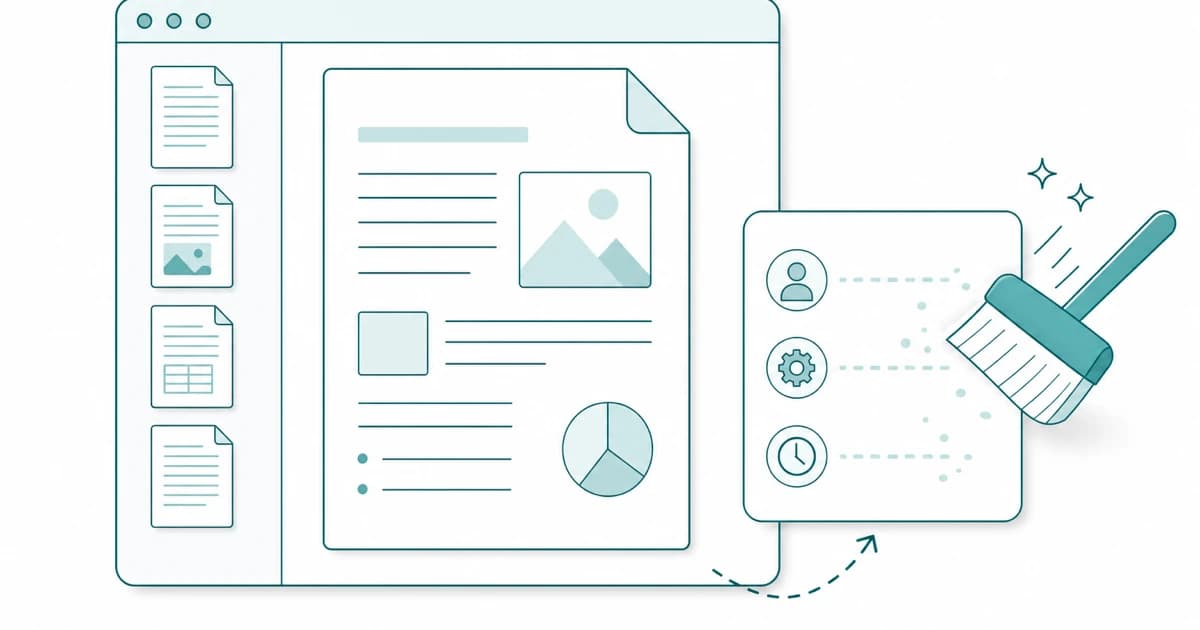

Every PDF quietly carries a little dossier about itself. Beyond the pages you can see, most files store a set of hidden fields — who the author is, which program created the document, and when it was made and last changed. You rarely notice this information, but anyone you send the file to can read it in a few clicks, and it is easy to leak something you did not mean to share.
The good news is that clearing those fields takes seconds and can be done entirely in your browser, without uploading the file. This guide explains what the hidden metadata is, why it is worth cleaning before you share a document, how to clear it locally, and — just as important — what a metadata editor does and does not remove.
What metadata a PDF carries
The standard hidden information in a PDF lives in what is called the Document Information dictionary. It holds a handful of named fields: a title and subject, a list of keywords, the author’s name, the “creator” (the application you wrote the document in), the “producer” (the software that generated the final PDF), and two timestamps for when the file was created and last modified.
None of that is visible on the page, but all of it travels with the file. Open almost any PDF’s properties in a reader and you can see these values — which means whoever receives your document can too. The newer PDF 2.0 standard deprecates these Info entries (except the two dates) in favour of XMP metadata, but software still writes them widely, so they remain worth checking.
Why it is worth cleaning before you share
These fields leak more than they seem to. The author field is frequently your real, full name, filled in automatically by the software without asking. The creator and producer fields reveal exactly which applications and versions you use, which is both a small privacy detail and, occasionally, a security one. The timestamps can quietly contradict a story — showing that a document said to be finished last week was actually last edited this morning.
For anything you are sending outside a trusted circle — a résumé to an employer, a document to a counterparty, a file posted publicly — it is worth taking a moment to clear these fields so the document says only what you intend it to.
Clear PDF metadata in your browser, step by step
Open the metadata editor and add your PDF. The tool reads the existing fields and shows you what the document is currently carrying, so you can see the author name, software, and dates before changing anything — the file is read locally on your device to do this, not uploaded.
From here you have two choices. If you want to remove everything at once, use the one-click option to clear all metadata, which strips every tracked field. If you would rather curate — keep a title but drop your name, say — edit the individual fields instead; leaving a field blank removes it entirely rather than saving an empty value. Save the file, and the cleaned PDF downloads to your device with its hidden fields gone. Dates are stored as a date only, so a date you enter is saved at 00:00 UTC. One restriction applies: a PDF that needs a password to open is rejected, and so is one that opens freely but carries a permissions (editing-restriction) password, because the pdf-lib library PDFBell uses to rewrite the file cannot decrypt documents and the saved copy would come out blank or unreadable. Remove the restriction in the app that created it, then try again.
What this removes — and what it does not
Be precise about what that covers, because “remove all metadata” tools can imply more than they deliver. Clearing the Document Information dictionary removes the common identifying fields described above: title, subject, keywords, author, creator, producer, and the two dates. For the large majority of everyday documents, that is exactly where the identifying information lives, and clearing it is a real, meaningful privacy improvement.
What it does not do is rewrite the visible content of your pages, and it is focused on that Information dictionary specifically. Some PDFs also carry a separate XMP metadata packet, which the XMP specification describes as serialized metadata embedded in the file, and any images embedded in the document can hold their own EXIF data; those are different structures from the Information dictionary. Names stored elsewhere in the file, such as the author of a comment or annotation, are not touched either. And clearing metadata is not the same as redaction — if a name or number is printed on the page itself, removing hidden fields does nothing to it. Think of clearing metadata as tidying the document’s hidden label, not as scrubbing every conceivable trace.
Making it a habit
The cleanest workflow is to clear metadata as the last step before sharing, once the document’s content is final. If you have merged several files together, clear after merging, since that is the safer order: PDFBell’s own merge starts the combined file with fresh document properties (the pdf-lib library appears as creator and producer, with a new creation date), and other merge tools may behave differently. And when a document is genuinely sensitive, pair a metadata clean with a look at the visible content — the two protect against different things, and together they cover far more than either alone.
Frequently asked questions
Exactly what metadata does clearing remove?
It removes the PDF’s Document Information dictionary fields: title, subject, keywords, author, creator (the app you wrote it in), producer (the software that generated the PDF), and the creation and modification dates. The one-click “clear all” option strips all of these at once; you can also edit or blank individual fields.
Does it remove absolutely everything, including XMP or image EXIF data?
No, and it is worth being clear about that. The tool focuses on the Document Information dictionary, which is where the common identifying fields live. Some PDFs additionally carry a separate XMP metadata packet, and images embedded in a document can retain their own EXIF data — those are different structures and fall outside what this editor clears. For most documents, clearing the Information dictionary removes the identifying details that matter.
Will clearing metadata change how my PDF looks?
No. The metadata fields are hidden information about the file, separate from the visible pages. Clearing them leaves the document’s content, layout, and appearance exactly as they were — it only removes the behind-the-scenes label.
Is my file uploaded so the tool can read its metadata?
No. The PDF is read and rewritten entirely in your browser and is never sent to a server, so there is no server copy for anyone to keep. That is rather the point of clearing metadata locally: you are not handing the file to a third party in order to have its hidden fields stripped elsewhere.
Sources
- PDFlib: Deprecated features in PDF 2.0 — PDF 2.0 declares document info entries deprecated except CreationDate and ModDate, in favour of XMP.
- Adobe Developer: XMP Specifications — XMP Part 3 describes how serialized XMP metadata is packaged and embedded in file formats such as PDF.
- pdf-lib on GitHub — pdf-lib does not currently support encrypted documents.