By The PDFBell Team
PDF to Word: What Survives the Conversion and What Doesn’t
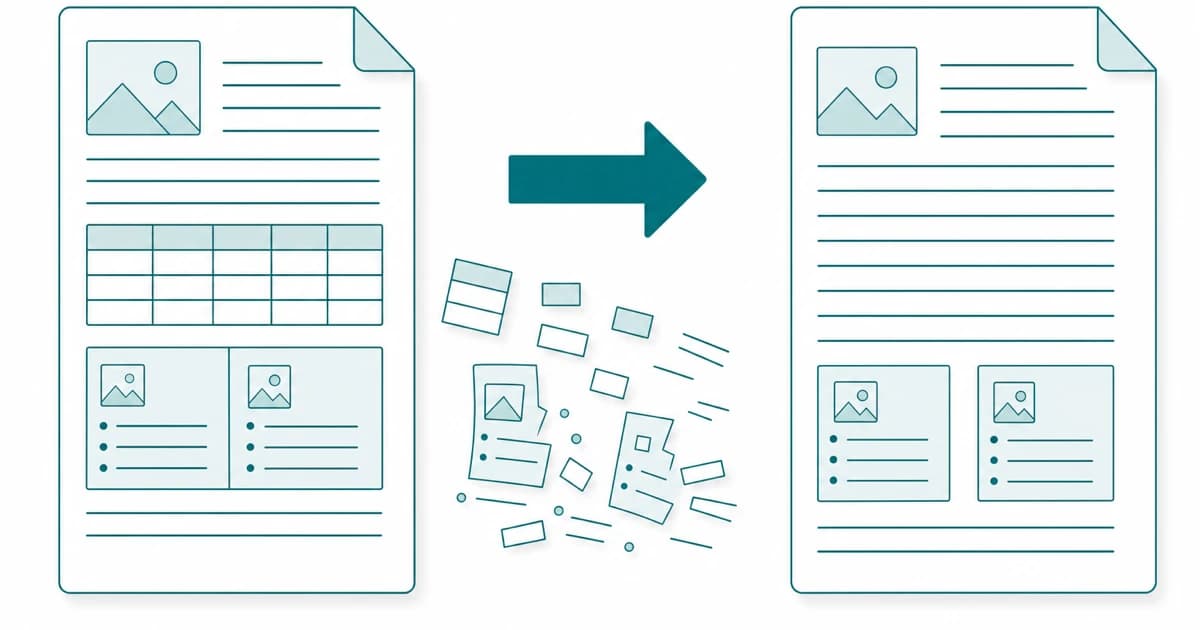

Converting a PDF to an editable Word document sounds like it should be a clean, lossless swap, and people are often surprised when the result needs tidying up. The reason is not a bug in any particular tool — it is the nature of the two formats. A PDF and a Word file describe a page in fundamentally different ways, and turning one into the other is an act of reconstruction, not translation.
Knowing what reliably carries over and what tends to break saves a lot of frustration. This guide explains what a PDF actually stores, which parts of a conversion you can trust, where the rough edges are, and why a scanned document is a separate problem that needs a different tool first.
What a PDF actually stores
A Word document stores structure: this is a heading, this is a paragraph, these cells form a table, and the software decides where they land on the page as you type. A PDF stores almost the opposite — it records where each piece of text and each line should be drawn, down to the coordinate, but usually keeps little or no record of what those pieces mean. It knows a glyph sits at a particular spot; it does not necessarily know that spot is the third row of a table.
That is why a PDF looks identical everywhere and is hard to edit, while a Word file is easy to edit and reflows freely. Converting PDF to Word means reading all those positioned fragments (PDFBell does this in your browser with the PDF.js library, a web-standards-based platform for parsing and rendering PDFs) and inferring the structure back — guessing which runs of text are headings, which belong together as paragraphs, and how the reading order flows. Good heuristics get this right most of the time on straightforward pages, and get it wrong exactly where the layout is ambiguous.
What comes across cleanly
Single-column documents that are mostly running text — reports, letters, articles, essays, terms and conditions — are the sweet spot. The paragraphs reflow sensibly, and headings are recognised from their larger type size and marked as headings, so the resulting Word file has a real, editable structure rather than a wall of loose lines. The output is a standard .docx file, an Office Open XML package, an open standard built on ZIP and XML that Word and other editors can open.
If your PDF is essentially a text document that happens to be in PDF form, expect a genuinely useful editable result — something you can revise and reformat rather than retype from scratch. Be clear about the scope, though: PDFBell’s converter produces text only, as headings and paragraphs. Images, tables, bullet formatting, bold and italic, colours, headers, footers and page layout are not carried over.
What tends to break
The trouble starts wherever the visual layout carries meaning the text stream does not. Multi-column pages can interleave in the wrong reading order. Tables are the hardest case, because the converter has to guess a grid from nothing but coordinates; PDFBell does not rebuild them, so their text arrives as ordinary lines and paragraphs. A paragraph that runs across a page break is also split in two, because each new page starts a new paragraph. Precise page layout, footnotes, headers and footers, text boxes, and unusual embedded fonts are all places where a faithful visual copy is not realistic.
Rather than inventing a layout that would be wrong, the converter keeps to the text it can read reliably. That is the realistic outcome: you keep the words, you lose the exact appearance. Treat conversion as a strong first draft to edit, not a pixel-perfect clone.
Scanned PDFs are a different problem
There is one case where conversion appears to fail completely: a scanned document. A scan is a picture of a page. To your eye it shows text, but to the file it is an image with no text layer underneath — there are no characters to extract, only pixels. Ask any straight PDF-to-Word tool to convert it and you will get an empty or near-empty result, because there was never any machine-readable text to begin with. PDFBell flags scanned pages and points you to OCR rather than handing back an empty file.
The fix is to run optical character recognition first. An OCR step looks at the image, recognises the letter shapes, and produces an actual text layer; only then is there something for a converter to work with. If your PDF is scanned or photographed, start with the OCR tool, then convert the OCR’d result.
Getting the best result
Two habits help. First, know what you actually need: if you only want the words — to quote, search, or paste elsewhere — a plain text extraction is faster and cleaner than a full Word conversion, and it sidesteps all the layout guesswork. Second, if you do need an editable document, go in expecting to spend a few minutes reformatting a complex file, and reserve conversion for the text-first PDFs where it shines. Used that way, PDF-to-Word turns a locked document into an editable draft in seconds, which is usually the whole point.
Frequently asked questions
Why doesn’t the Word file look exactly like the original PDF?
Because a PDF stores the position of text rather than its structure, converting it means rebuilding paragraphs, headings, and tables by inference. Straightforward single-column text reconstructs well; complex layouts, multi-column pages, and intricate tables are ambiguous and may reflow differently. The conversion aims to give you editable content, not a pixel-perfect replica.
I converted a scanned PDF and got nothing useful. What went wrong?
A scanned PDF is an image of a page with no underlying text layer, so there are no characters to extract. Run optical character recognition (OCR) on it first to generate a real text layer, then convert that result. Without the OCR step, a text-based converter has nothing to work from.
Does the conversion upload my file to a server?
No. The conversion runs in your browser: the text is extracted and packaged into a .docx on your own device, and the file is never sent anywhere. A PDF that needs a password to open is rejected with a message asking you to remove the password; one that only carries owner restrictions still works, because the file is only read, not rewritten. Once the page has loaded, nothing about the process needs a server — the work happens where the file already is.
What if I only need the text and not the formatting?
Use a plain PDF-to-text extraction instead. It pulls the document’s text layer straight out without trying to rebuild headings, tables, or layout, which makes it faster and avoids the reconstruction guesswork entirely — ideal when you just want to copy, quote, or search the words.
Sources
- PDF.js — PDF.js is a general-purpose, web-standards-based platform for parsing and rendering PDFs, used here to read the text layer.
- Microsoft Learn: Welcome to the Open XML SDK for Office — The Office Open XML File Formats are an open international standard (ECMA-376 and ISO/IEC 29500) based on ZIP and XML.